

Save your Gmail™ emails as PDF, HTML or TXT
Attachments included, repeated signatures removed. From Gmail straight to your computer, never to our servers.
How it works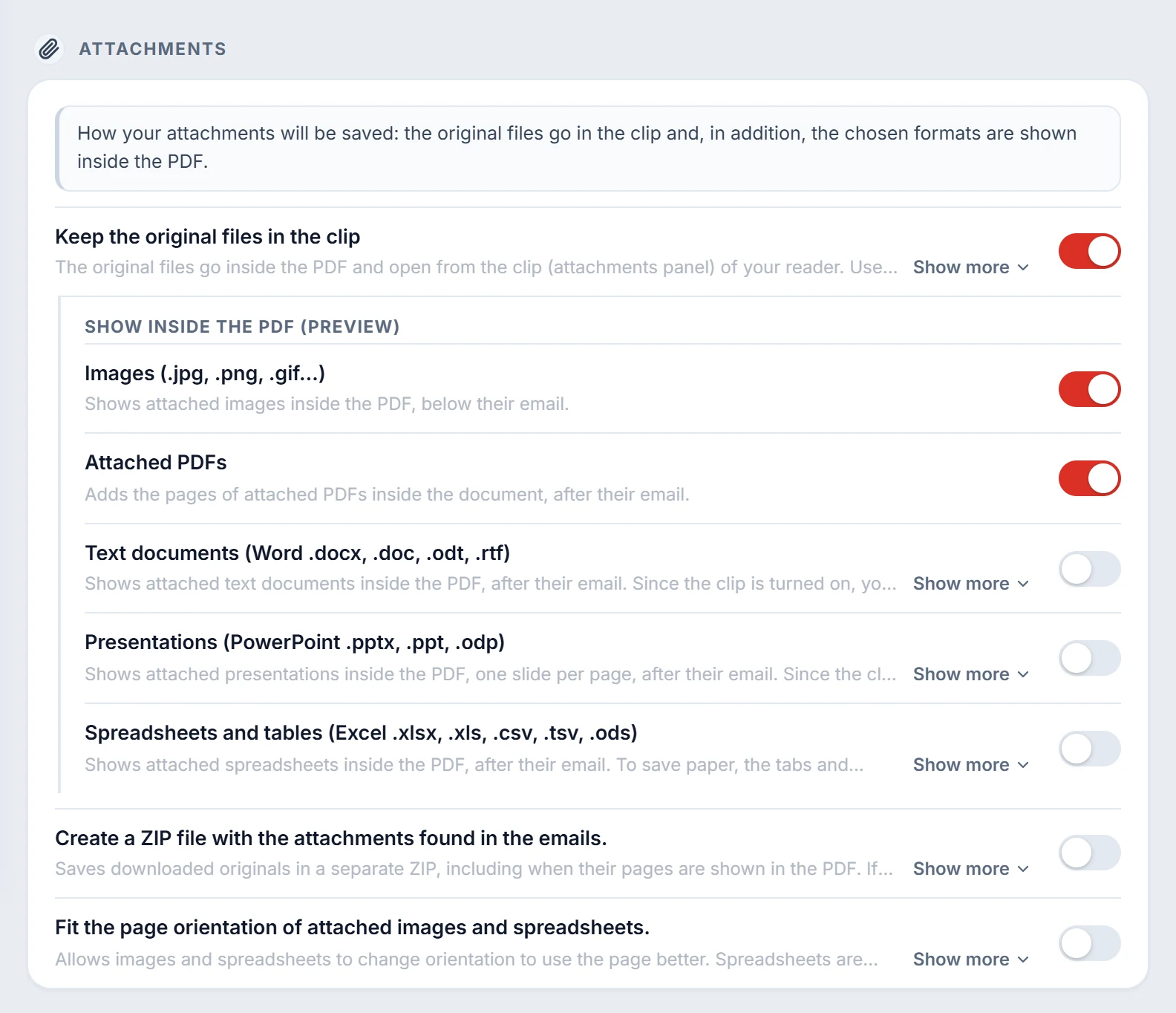
Need to hand over or archive emails?
- Lawyers and law firmsCase files with the full message history and its attachments.
- Accountants and bookkeepingInvoices, receipts and agreements gathered in a single file.
- HR and administrationAn orderly copy of internal communications.
- AnyoneYour important emails, saved on your computer and readable offline.
What it does
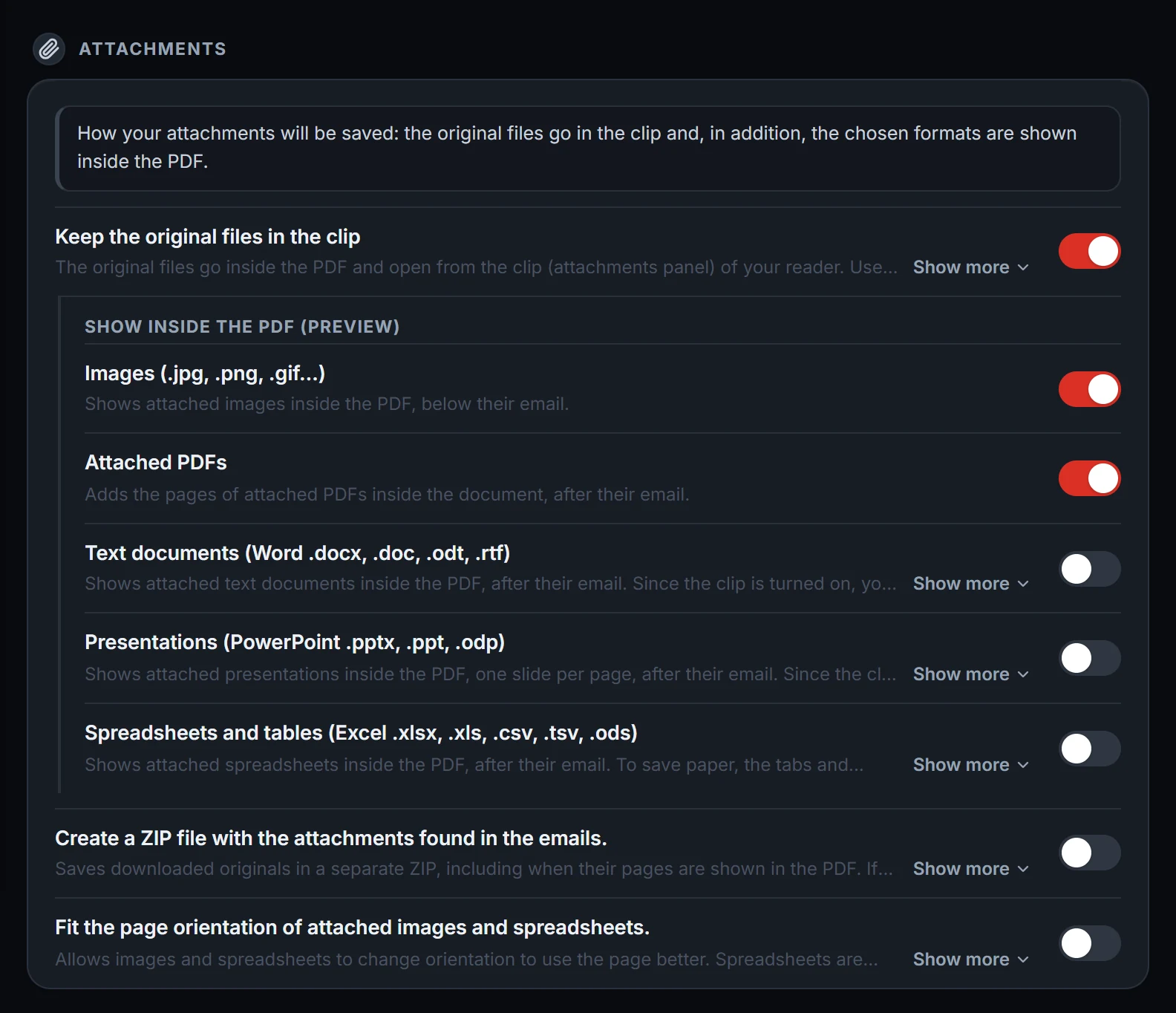
Visible attachments and original files
Choose which file types to view inside the document and whether to keep the originals too. You can embed attachments directly inside the PDF, package them in a ZIP, or combine both options.
Hundreds of emails in a single step
Handle large volumes of emails with ease, organizing the result into a consolidated file or splitting it into one file per conversation.
Clean, readable spreadsheets
Forget broken tables: sheets are laid out continuously, with automatic or manual scale, repeated headers, and the sheet name on every section.
An email filter tailored to you
Precisely filter out the clutter: remove signatures and quotes in 25 languages across different cleaning levels, or keep the email intact if you prefer.
Supercharged Gmail printing
Forget printing emails one by one: select as many as you need and batch-download them in Gmail's print layout, adding attachment previews, original files in the paperclip, and advanced paper-saving options.
Interactive HTML
Generate an HTML file with an interactive sidebar to jump between conversations and direct links to download each attachment or all of them in a ZIP.
Password protection
Lock access to your PDF and ZIP files with a password backed by military-grade AES-256 encryption.
Settings for every workflow
Built to match your exact way of working: set custom paper dimensions in millimeters, adjust margins, customize separator lines, sort to match your Gmail inbox, choose an independent document language, and fine-tune dozens of advanced settings so every file turns out right.
Peak speed without waiting
Keeps processing at full speed in the background even if you switch tabs or keep using your browser.
Compared with other extensions
Real differences in features and formats compared to other alternatives.
| Feature | CarefulTools | cloudHQ | M2pdf |
|---|---|---|---|
| Formats | PDF, HTML and TXT | PDF, HTML and text | PDF only |
| Batch “Gmail print” mode | Yes | Does not have this mode | Does not have this mode |
| All original attachments inside the PDF (in the reader’s paperclip) | Yes | No | No |
| Choose which attachment types to show as pages (one by one) | Yes: 5 switches | No: all at once | No: images and PDFs go together |
| Spreadsheets: clean, continuous tables without wasted pages | Yes | No: each table starts a new page | Does not show Excel files |
| Interactive HTML with side menu and attachment downloads | Yes | No | Has no HTML |
| Save straight to the cloud (Google Drive, Dropbox, OneDrive…) | No | Yes | No |
| Extension languages | 25 | 11 (according to its listing) | 1 |
Data verified in our tests on 4 and 5 October 2026. Features of any of them may change. cloudHQ and M2pdf are trademarks of their owners, not affiliated with CarefulTools. Full comparison: versus cloudHQ and versus M2pdf.
How it works
- In Gmail, select the emails you want to save or open the conversation you need.
- Click the extension icon.
- Choose PDF, HTML or TXT and create the file. It will download straight to your computer.
Compatible with Google Chrome, Microsoft Edge, Brave, Opera, Vivaldi, and Chromium-based browsers.
Your privacy comes first
Only what is essential
The extension only looks at the emails you expressly select, or the one you have open, and only while it creates the file (PDF, HTML or TXT). In Gmail it works under Google's strict read-only permission, which prevents it from sending messages, deleting emails or making changes.
Local processing
The process happens locally: your emails go from Gmail to your browser and the file (PDF, HTML or TXT) is created on your own device. No message travels through or is stored on our servers. Only if you turn on the Word, Excel or PowerPoint preview are those attachments converted in your own Google Drive.
Full transparency
We only keep your email address, a random installation identifier and an activity record (date and number of exports). This information is used solely to manage your monthly or purchased usage limit, check whether you are a founding user and prevent abuse of the free uses, without ever accessing the content of your emails.
All the details are in the privacy policy.
Frequently asked questions
Why does Google say the extension can “read your messages”?
It is a generic warning that Google imposes for Gmail's read-only permission. However, the extension only looks at the emails you select to save and creates the file on your own computer; no message travels through our servers. You stay in full control and can revoke this permission whenever you like with the “Disconnect” button in the extension's Settings or in your Google Account.
Is it free?
During the launch you will be able to use it for free, with no limits. Later on we will keep free generations each month and offer paid packs for extra generations. We will announce the final dates in advance, with full transparency from the start.
What is a “generation”?
Each time you successfully save your emails to PDF, HTML or TXT counts as one generation, no matter how many emails you selected or how many files come out. If the operation fails or you stop it, it does not use up any generation.
Do I need Google Drive?
No. It is only used if you turn on the Word, Excel or PowerPoint preview, to see those attachments inside your file. Chrome cannot open those formats by itself, so the extension uploads a temporary copy of the attachment to your own Google Drive, Google converts it into a Google Doc, Sheet or Slides presentation, and the extension brings back a copy of the pages exactly as they look there (or of their text, if you create a TXT) and places it in your file.
When it finishes, it deletes the temporary copy; if it cannot at that moment, it tries again by itself. For this it asks separately for a limited Drive permission that only gives access to the files the extension itself creates, never to the rest of your Drive. The copy goes from your computer to your Drive and never passes through our servers.
Have a question?
Write to us at support@carefultools.com.